Administration UI
The Administration UI is the central control panel for managing the Operaide platform. It gives administrators a single place to oversee users, applications, AI providers, connections, and platform settings — without requiring direct access to the underlying infrastructure. Everything an administrator needs to operate and configure Operaide day-to-day is accessible from this interface.
Layout
The Administration UI has four areas:
- Top Bar - Spans the full width. On the left: the Operaide logo and an organization switcher; in workspace and detail views, a breadcrumb of your current location. On the right: the user menu (profile picture or initials).
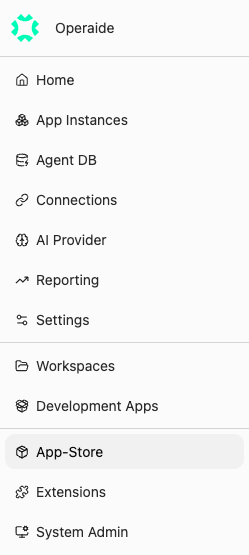
- Left Sidebar - The main navigation panel (see Navigation).
- Content Area - The main working area on the right; shows tables, forms, dashboards, or editors depending on the selected section.
- Bottom Bar - A slim status bar with a button to collapse or expand the sidebar, a link to this documentation, and the platform version.
Navigation
The left sidebar is the main navigation panel. Each entry leads to a dedicated management area. Some entries appear only when you hold the required role or the relevant extension is enabled, so your sidebar may show more or fewer entries than listed here.
- Home - Landing dashboard with a welcome overview and quick links.
- App Instances - Production app instances deployed in your organization.
- Reaktors / Reaktor Instances - Legacy Reaktor views (only when the Reaktors extension is enabled).
- Conversations - Stored chat conversations (Super Admin, when enabled).
- Agent DB - Legacy organization-wide agent databases (App Manager).
- Connections - Credentials and configuration for external services.
- AI Provider - AI model providers, API keys, and usage limits.
- Reporting - Usage metrics and Reaktor performance (Reporting extension, on by default).
- Settings - Organization settings: general, members, registration, API keys, theme, translations.
- Workspaces - Your Operaide Studio sessions; open, monitor, or delete them.
- Development Apps - Development-channel deployments; build and test before publishing.
- App-Store - Browse and deploy Apps.
- Extensions - Enable or disable platform extensions (Extension Manager).
- System Admin - Platform-level administration (global roles).
A Documentation link at the bottom opens this handbook in a new tab.