Multi-Tenancy (Organizations)
Multi-Tenancy, referred to as Organizations in Operaide, is an architecture where a single instance of the application serves multiple customers. Each customer, known as an organization, is isolated from others, ensuring data privacy and security.
How to Access
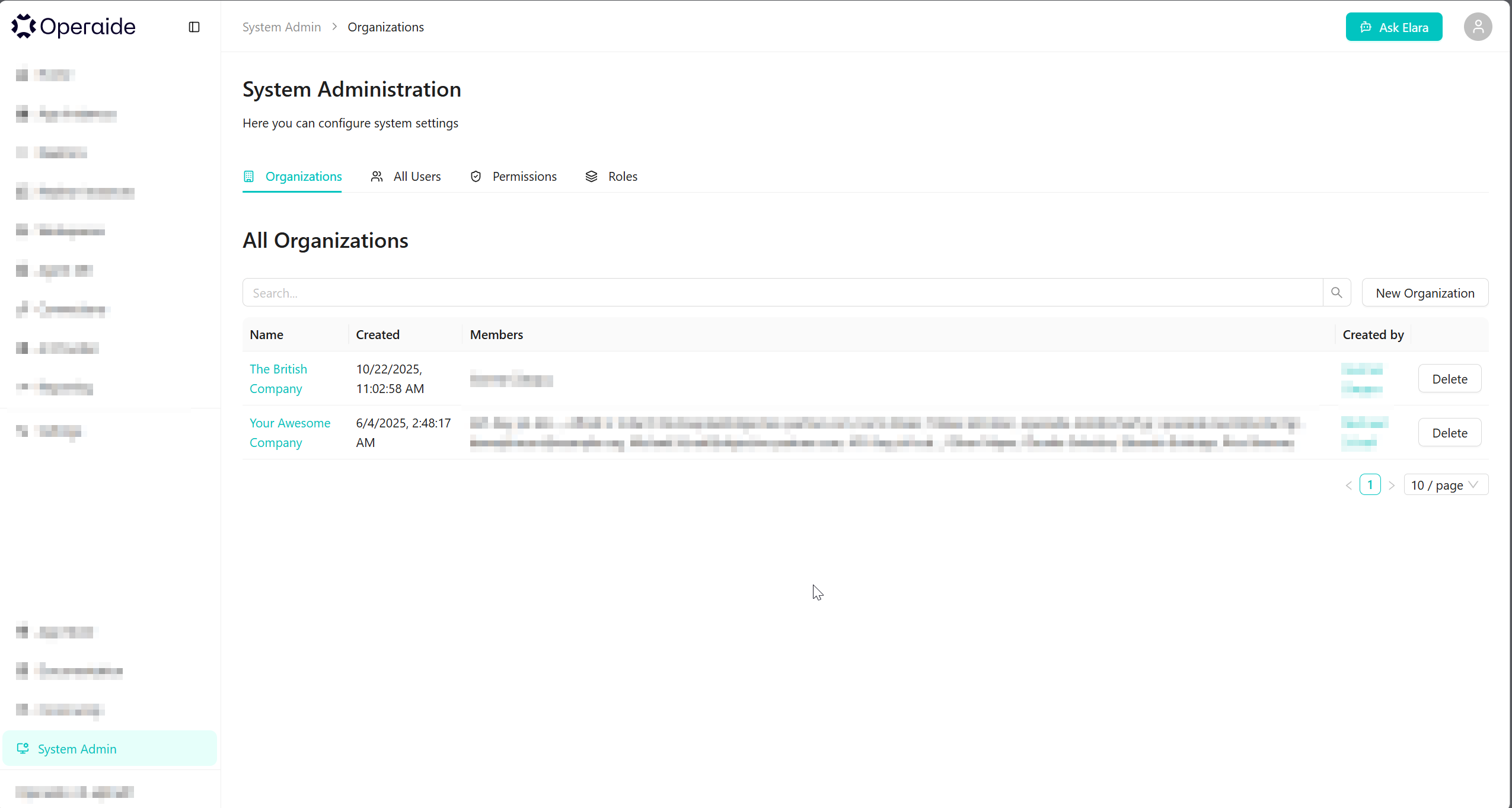
Navigate to System Admin > Organizations in the left sidebar.
Key Concepts
| Concept | Description |
|---|---|
| Organization | A customer or group of users that share common access with specific privileges to the software instance |
| Isolation | Ensuring that data and configurations of one organization are not accessible to another |
| Shared Resources | Common infrastructure and services used by multiple organizations |
Benefits
- Cost Efficiency: Shared resources reduce overall costs
- Scalability: Easily add new organizations without significant changes to the infrastructure
- Maintenance: Centralized updates and maintenance for all organizations
- Data Security: Each organization's data is isolated and protected
How It Works
Database Isolation
Each organization's data is logically separated within the database schema. Users can only access data belonging to their organization.
Access Control
Access control mechanisms restrict data access based on the organization. Users are assigned to one or more organizations, and their permissions are scoped accordingly.
Configuration Management
Each organization can have its own:
- Theme and branding (see Theming)
- AI Provider configurations
- Connection settings
- Custom translations
Managing Organizations
Creating a New Organization
- Navigate to System Admin > Organizations
- Click New Organization
- Enter the organization name
- Configure initial settings
Organization Settings
Click on an organization name to access its settings:
- Members: Manage users and their roles
- Theme: Customize branding and appearance
- API Keys: Manage API access
- Registration: Configure auto-registration rules
Deleting an Organization
Click the Delete button next to an organization to remove it.
Deleting an organization permanently removes all its data, users, and configurations. This action cannot be undone.
Example Use Case
Consider a SaaS deployment with multiple customers:
| Organization | Use Case |
|---|---|
| Company A | Sales team using AI assistants for customer support |
| Company B | HR department automating document processing |
Each organization operates independently with:
- Separate user accounts and permissions
- Isolated data and conversations
- Custom branding and themes
- Individual AI provider configurations