Operaide Knowledge Chat
This app offers a knowledge chat to be used via Elara. You will have a thorough experience of uploading and managing your own knowledge base as well as chatting with it. Elara can be used as the all-in-one interface to upload and automatically vectorize your documents.
Settings
After deploying the app knowledge-chat, you can find it in the list of deployments. Click on the deployment to get to the settings of the deployment. Under settings you can configure the knowledge chat. You'll have the following options:
System Prompt
This is the system prompt that will be used for your knowledge chat. It is important to specify the type of information in your knowledge base. Give the LLM a clear understanding of the information you want to chat about. You can also set boundaries for it, for example that it should only answer questions about the information in your knowledge base. Take your time to define this prompt to make it feel as specific as possible.
Some ideas to keep in mind:
- What structure will the documents have?
- What is the main topic of the documents?
- What is the main question you want to answer with the knowledge base?
- What is the main goal of the knowledge base?
- How should the LLM answer questions?
Provider and Model
These are the core settings for the model and provider that will be used for the knowledge chat. You can choose from the current available models and providers you have specified in your account. For example, you can use the 4o-mini model from the devAzure provider.
AgentDB ID
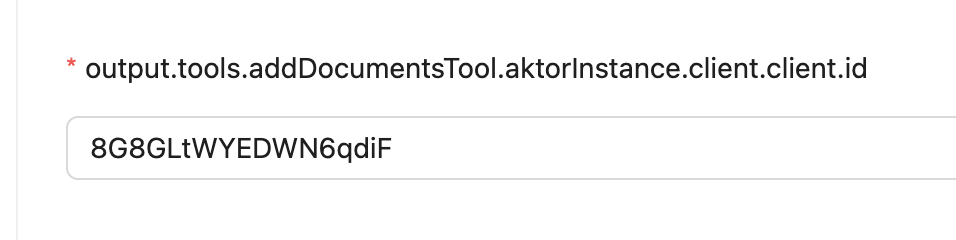
This is will be used to reference the AgentDB that will be used to store the knowledge base. You can find the AgentDB ID in the AgentDB section of the Operaide platform. Keep in mind to first create an AgentDB in the AgentDB section of the Operaide platform, then note the ID and set it here.
Usage
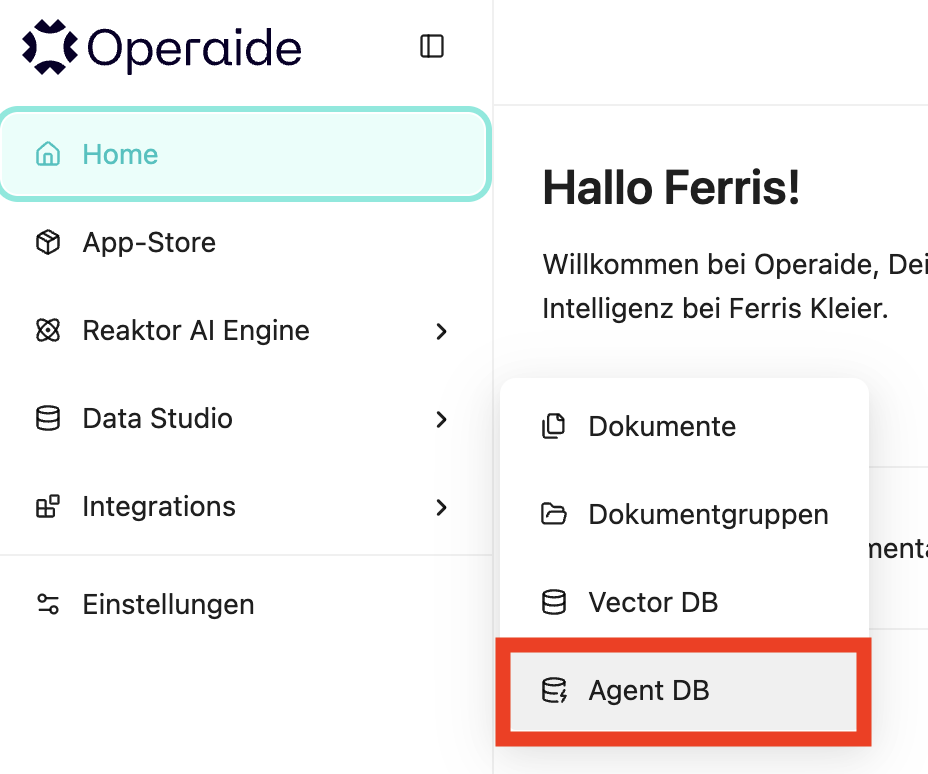
To use the knowledge chat, you will first need an AgentDB. You can create an AgentDB in the AgentDB section under Data Studio > AgentDB.
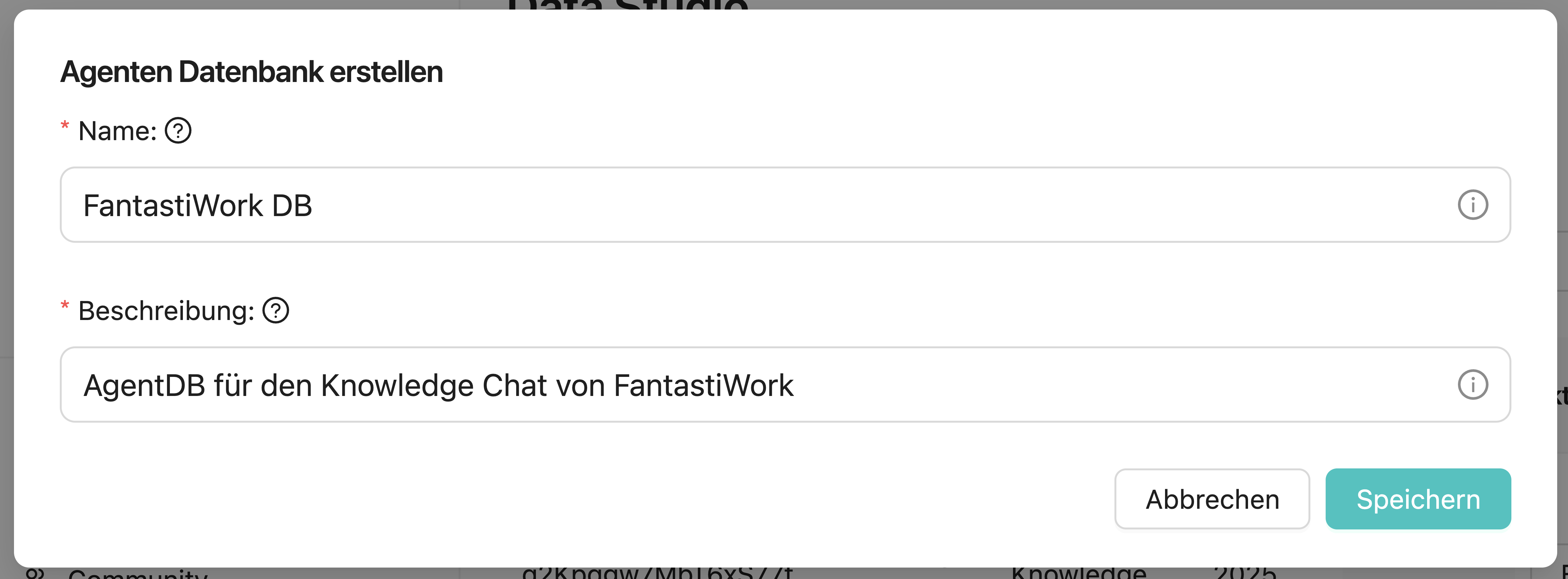
Create a new AgentDB. You can freely choose the name and description of the AgentDB to keep track of it later on.
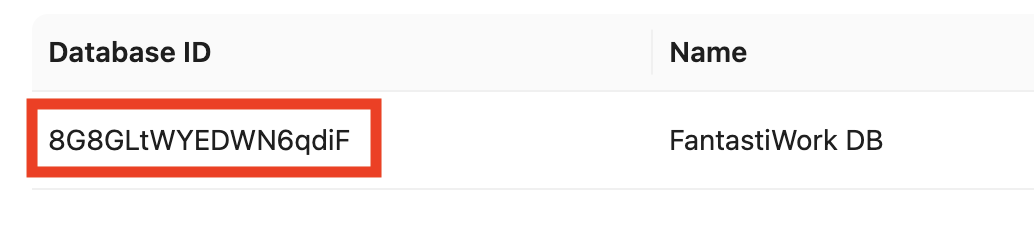
After creating the AgentDB, you can see the ID of it right at the beginning of the listing entry. Copy this ID.
Now you can set this ID in the AgentDB ID field of the knowledge chat deployment.
Open Elara on the top right of Operaide and navigate to the knowledge-chat option, or the name of your deployment.
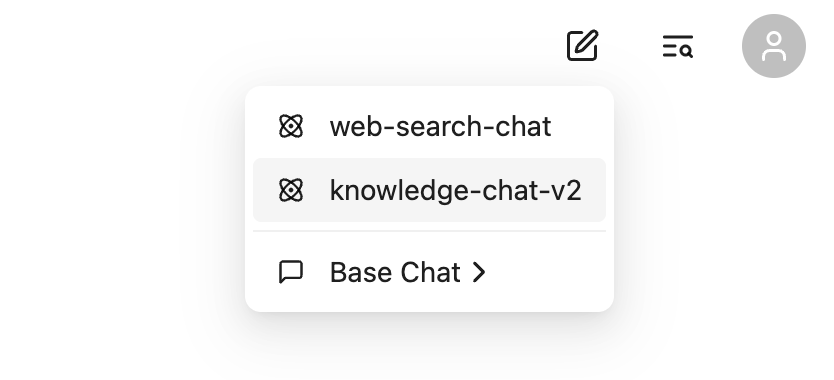
From here you can manage your knowledge base. You can upload documents, delete documents, and view the documents that are currently in the knowledge base. Just try prompts such as
Upload these documents followed by added documents in the message field
Which documents are in the database? to show a list of the available documents.
Delete document xyz.pdf to delete a document.
What information are there on product xyz? to search for information about a specific product.