Operaide Basic Chat
This app offers a simple chat to be used via Elara. You can use it like a customized chatbot with your prefered AI model and system prompt.
Settings
After deploying the app basic-chat, you can find it in the list of deployments. Click on the deployment to get to the settings of the deployment. Under settings you can configure the chat. You'll have the following options:
File support toggle
This options defines if the chat supports native file handling from the model. Keep in mind that some models do not support native file support, such as 4o-mini. In this case, keeping this option off will use a build-in file handler to transform the files to markdown and work on them, which may not be the best experience.
System Prompt
Define the task or role for Elara. This will be the system prompt that the app will use to answer your questions. You can personalize it to your needs, such as supporting the user with a specific language, or adding a specific tone to the chat. You can also set boundaries for it, such as topics that are off-limits.
Displayed Description for Model / Reaktor
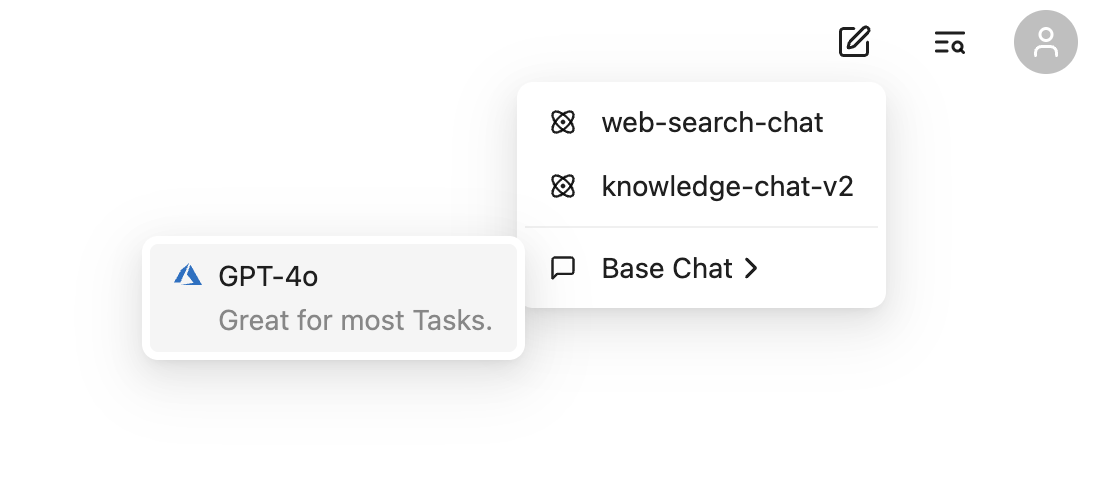
This is the description that will be displayed for the model / reaktor in the chat. It will be shown in the chat interface and tells the user what the model is capable of.
Display Name of Model / Reaktor
This is the name that will be displayed for the model / reaktor in the chat.
Include in Base Chat
Whether this Reaktor is shown as Base Chat. This means that it will be listed in the base chat options of Elara.
Model and Provider
These are the core settings for the model and provider that will be used for the chat. You can choose from the current available models and providers you have specified in your account. For example, you can use the 4o-mini model from the devAzure provider.
Usage
After defining the settings of your deployment, you can use the chat in Elara. You can find the chat in the base chat options of Elara.
Click on the Elara button in the top right of Operaide.

And navigate to the base-chat option.