Operaide Studio
Operaide Studio is a browser-based IDE for Operaide apps. It covers writing, testing, and deployment without local setup.
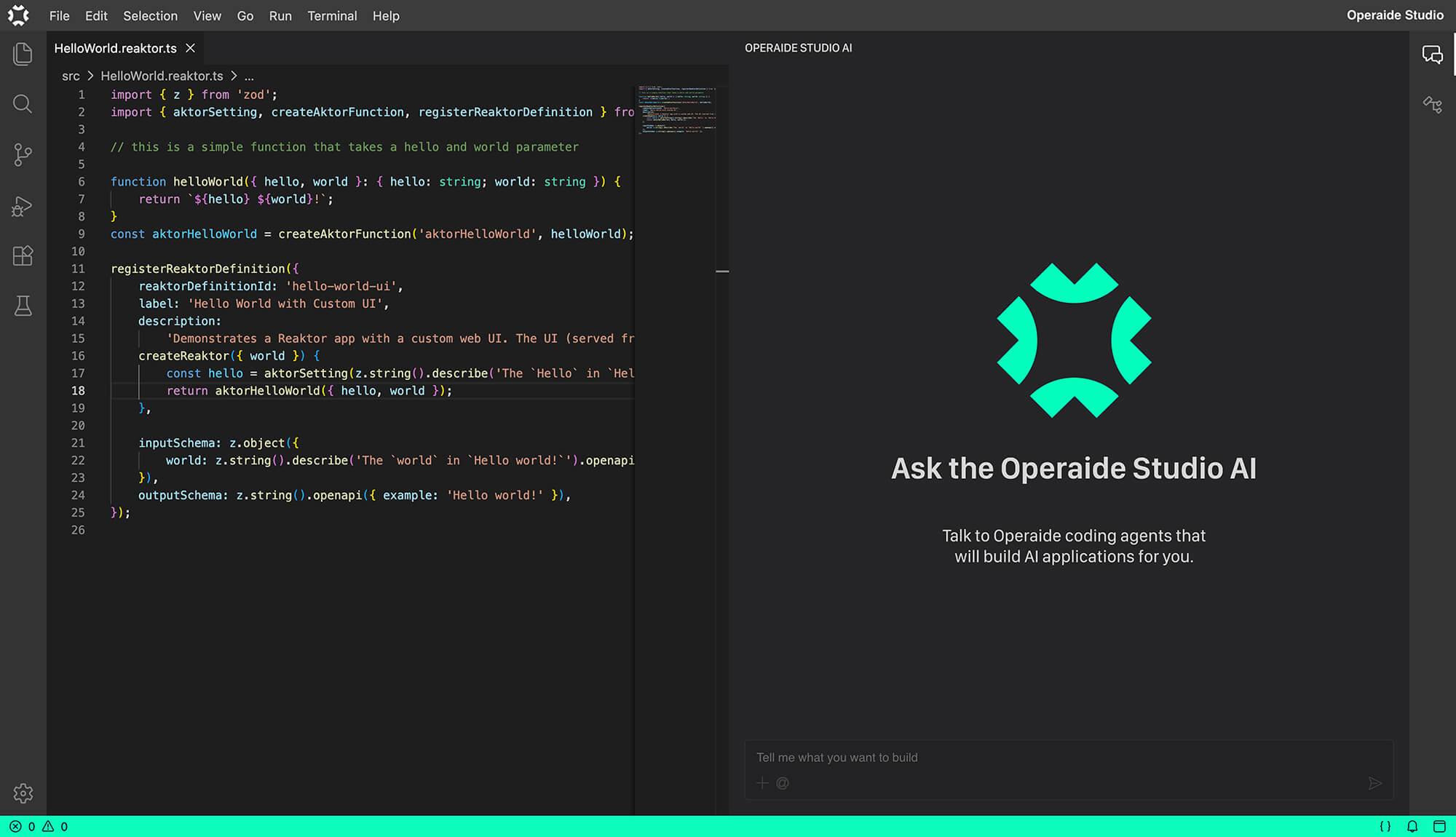
What You Get
Everything you expect from a modern IDE — right in your browser:
- Code Completion — intelligent autocomplete with context-aware suggestions as you type
- Integrated Terminal — full command-line access without leaving the browser
- Debugger — set breakpoints, inspect variables, and step through code
- File Explorer — navigate your project structure with a familiar sidebar
- Split Editor — work on multiple files side by side
- Search & Replace — find and replace across files and entire projects
- Syntax Highlighting — language-aware highlighting for all common file types
- One-Click Tasks — run common commands like deploy directly from the toolbar, no terminal typing required
- Extensions — all necessary extensions come pre-installed, ready to use out of the box
- Git Integration — built-in version control for commits, branches, and diffs
- AI Coding Assistant — AI-powered code suggestions, chat, and edits
The platform manages each Studio instance transparently in the background:
- Per-user isolation — every developer works in their own isolated process
- Persistent home directories — files and settings are preserved between sessions
- Lazy start — Studio starts on first access; no resources are consumed when idle
- Automatic health checks — unhealthy instances are cleaned up automatically
- Idle timeout — instances shut down after 30 minutes of inactivity to conserve resources
The Studio Interface
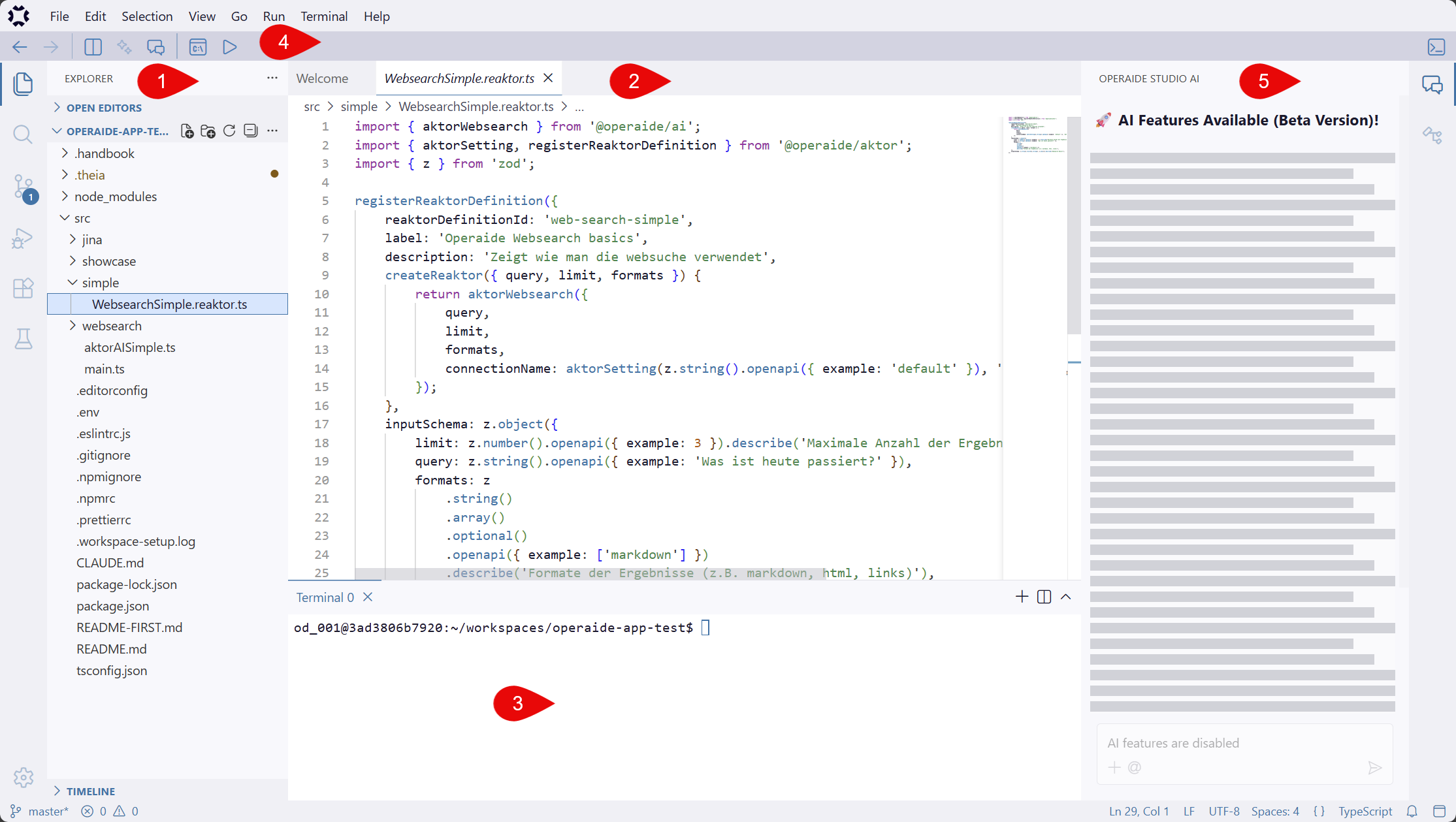
When Studio opens, a new browser tab displays the IDE. The interface includes:
- File Explorer — navigate your App's source code on the left
- Editor Area — edit files in the center with full syntax support
- Terminal — command-line access at the bottom
- Top Bar — quick access to deployment, tasks, and settings
- AI Panel — AI-powered chat and inline editing directly alongside your code
The top bar runs across the entire IDE window and gives you quick access to navigation, editor controls, the terminal, AI features, and the Command Palette. The most used shortcut is the One-Click Tasks button: it opens a dropdown of preconfigured commands — such as Deploy to Operaide, Install Dependencies, or Check: TypeScript — so you can trigger common operations with a single click, without typing anything in the terminal.
Default Settings
Operaide Studio comes preconfigured with sensible defaults:
- Format on Save — files are automatically formatted when you save
- Insert Spaces — tabs are converted to spaces
- Color Theme — Operaide Light is the default theme
Development Process
Before diving into the details, here is a quick look at the development workflow in Operaide Studio.
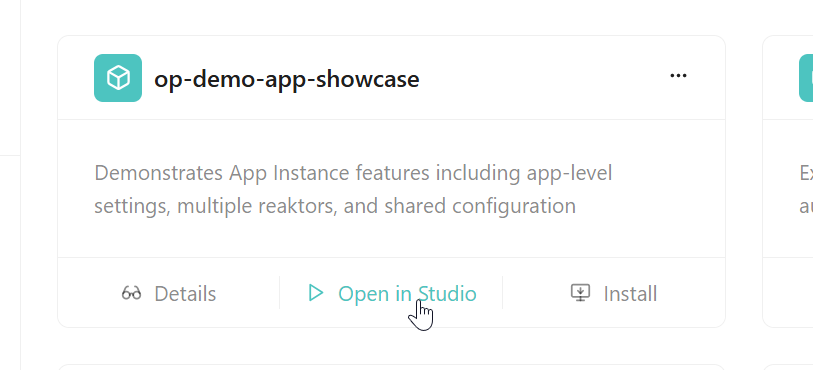
Every project starts with a Starter Template. Browse the App Store, pick a template that fits your use case, and click Open in Studio. Before coding begins, you give your new App a name — then Studio is ready. Write and test your code, iterate until everything works, and deploy.
Start new Project in Operaide Studio
Browse the available Apps in the App Store and click Open in Studio on the App card. The App will be downloaded and set up in your workspace automatically — no manual configuration needed.
Workspaces
Every time you open an App in Studio, a Workspace is created. Workspaces persist your development environment so you can resume work at any time, from any browser.
To manage your Workspaces, navigate to Workspaces in the left sidebar.
Per-User Isolation
Each developer gets their own isolated Studio instance. There is no interference between team members working on the same platform. Your files, settings, and terminal sessions are private to your workspace.